
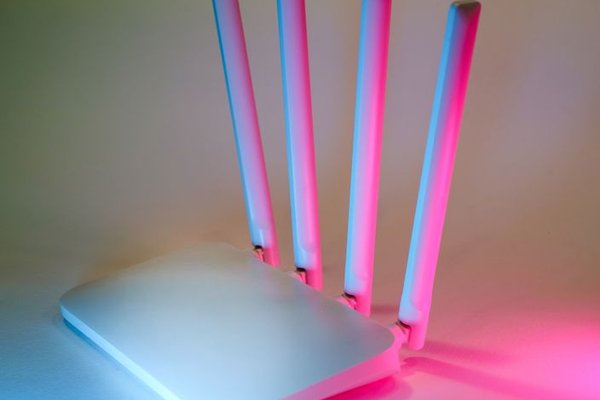
A weak Wi-Fi signal is frustrating because the problem can feel random: one room streams perfectly while another drops calls or buffers video. The good news is that you usually do not need a faster internet plan to improve Wi-Fi signal at home. Better router placement, less interference, smarter band selection, and a few settings changes can make a noticeable difference.
First, separate an internet-speed problem from a Wi-Fi problem
Run a speed test close to the router, then repeat it in the room where the connection feels weak. If performance is good near the router but falls sharply farther away, the issue is probably wireless coverage. If speeds are poor even beside the router, restart the modem and router, check cables, and compare the result with a wired Ethernet connection if possible.
This prevents a common mistake: paying for a faster package when the real bottleneck is the wireless link between the router and your device.
Move the router before buying extra hardware
Router placement has a major effect on wireless coverage. Wi-Fi works best when the router is in an open, central position rather than hidden in a cabinet, sitting on the floor, or tucked behind a television. Thick walls, metal, concrete, mirrors, appliances, and large furniture can weaken or reflect radio signals.
Try moving the router higher and closer to the center of the home. Even moving it several feet away from a wall or large appliance can help boost Wi-Fi signal in nearby rooms.
A practical placement test
Suppose the router is in a ground-floor hallway cabinet and the home office is upstairs and two rooms away. Temporarily move the router onto an open shelf closer to the staircase and retest the office. If performance improves clearly, placement is part of the problem. That also gives you a clue about where a future mesh node should sit.
Use the right Wi-Fi band
Modern routers commonly offer 2.4 GHz and 5 GHz, while newer equipment may also support 6 GHz. The 2.4 GHz band generally reaches farther and handles obstacles better, but it is often more crowded. The 5 GHz band can provide higher performance at shorter ranges and is often a better choice near the router. The 6 GHz band can offer additional, less-congested spectrum on compatible equipment, but good access-point placement remains important.
If your router combines bands under one network name, band steering may handle this automatically. If you manage bands separately, use 5 GHz or 6 GHz for nearby laptops, phones, gaming devices, and streaming hardware, while 2.4 GHz can be useful for farther-away or low-bandwidth devices.
Reduce interference and channel congestion
Weak Wi-Fi is not always caused by distance. In apartments and dense neighborhoods, many routers may compete for the same channels. Devices operating around 2.4 GHz can also contribute to interference.
For most home networks, leaving channel selection on Auto is a sensible first step. If you set channels manually, check nearby networks with your router app or a reputable Wi-Fi analyzer first. On 2.4 GHz, a 20 MHz channel width is often more reliable in crowded environments than wider channels.
Keep the router away from microwave ovens, large metal surfaces, cordless-phone bases, and tightly packed electronics where practical.
Update the router and review its settings
Router firmware updates can improve stability, compatibility, security, and performance. Open the router’s app or web interface and check whether automatic updates are available. Keep supported wireless modes and bands enabled unless you have a specific compatibility reason to disable one.
Restarting a router can clear temporary problems, but needing to reboot it frequently is a warning sign. Persistent crashes, overheating, or major slowdowns with several connected devices can point to aging hardware.
Useful internal topics to connect from this section include router placement guide, 2.4 GHz vs 5 GHz Wi-Fi, and mesh Wi-Fi setup.
Fix coverage gaps with the right equipment
If placement and settings are already good but dead zones remain, one router may simply not be enough. A mesh Wi-Fi system can improve wireless coverage by using several coordinated access points around the home, which is especially useful in multi-story layouts or houses with thick walls.
A Wi-Fi extender can be cheaper, but placement matters. Put it where the existing signal is still reasonably strong, not inside the dead zone. An extender cannot create a strong connection from a signal it barely receives. Where possible, wired Ethernet backhaul between access points can provide more consistent performance.
Check the device, not just the router
If only one phone, laptop, or smart TV has weak Wi-Fi while other devices work well in the same spot, the router may not be the problem. Forget the network and reconnect, install operating-system updates, update the Wi-Fi driver where applicable, and review power-saving settings that may limit wireless performance.
Device age matters too. A newer laptop may support newer Wi-Fi standards and bands that an older device cannot use. A new router cannot give an old device capabilities its wireless hardware lacks.
Use Ethernet where consistency matters most
For a desktop PC, game console, smart TV, or work computer that rarely moves, Ethernet can be more reliable than trying to perfect Wi-Fi everywhere. A wired connection reduces wireless congestion and can provide more consistent latency and throughput, leaving Wi-Fi capacity for portable devices.
FAQ
Why is my Wi-Fi weak even though my internet plan is fast?
Your internet plan controls the connection delivered to your home, while Wi-Fi quality depends on distance, obstacles, interference, router capability, and the receiving device. A fast plan cannot compensate for a poor wireless link.
Does moving a router higher really help?
Often, yes. Raising the router can reduce obstruction from furniture and improve how the signal spreads through nearby rooms. An open shelf is generally better than the floor or a closed cabinet.
Is 2.4 GHz or 5 GHz better for weak Wi-Fi?
It depends on distance. The 2.4 GHz band usually offers better reach, while 5 GHz often provides better performance at shorter range with less congestion. Test both if your router allows separate selection.
Should I buy a Wi-Fi extender or mesh system?
An extender can work for one modest coverage gap, while mesh is usually better for several weak areas or a larger multi-story home. In either case, place the added node where it can still receive a strong connection from the main router, or use wired backhaul when available.
Improve the signal by changing one thing at a time
The best way to improve Wi-Fi signal is to diagnose before you shop. Test near the router, improve its location, choose the appropriate band, reduce interference, update the router, and then retest the weak rooms. Only after those steps should you decide whether you need an extender, mesh system, or replacement router. That approach fixes the cause instead of simply adding more hardware to the network.