
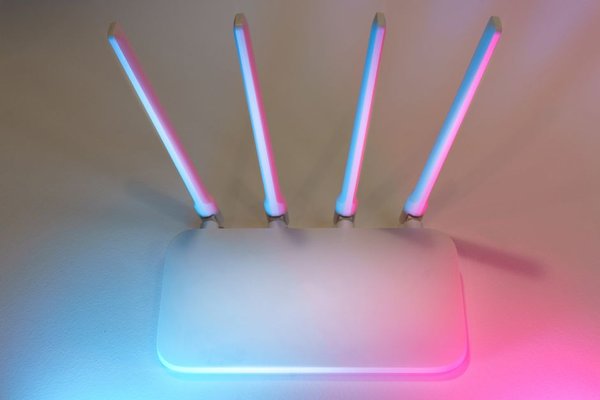
Your router sits between almost every connected device in your home and the wider internet. Phones, laptops, smart TVs, security cameras, speakers, thermostats, and game consoles may all depend on it, which makes the router one of the most useful places to improve network protection. Good home wifi security is about removing easy entry points, limiting what an intruder could reach, and keeping control of the settings that decide who gets access.
The most effective improvements are simple: keep the router supported and updated, replace default credentials, use modern Wi-Fi encryption, turn off features you do not need, and check which devices are connected.
Start With the Router Itself
Router security has two layers. One protects the wireless network that devices join. The other protects the router’s administration page or app. If someone gains administrative access, they may be able to weaken wireless security, expose services, change network settings, or lock you out.
Change the administrator password
Open the router’s official app or local management page and replace any factory-set or easily guessed administrator password with a long, unique passphrase. It should be different from the Wi-Fi password and from passwords used for other accounts. If the router supports multi-factor authentication for management access, enable it.
Check whether remote administration is enabled too. Most households do not need to manage a router from the public internet, so remote management should normally be off unless there is a specific reason to use it.
Install firmware updates
Router firmware is software, and security flaws are discovered over time. Enable automatic updates when supported, or check the router’s update page periodically. Install firmware only from the manufacturer or your internet provider when it manages the equipment. If a router no longer receives security updates, replacing it is worth considering because a strong password cannot patch unsupported firmware.
Use Modern Wi-Fi Encryption
Use WPA3-Personal when your router and devices support it. If compatibility requires WPA2, WPA2 with AES remains a practical fallback on many home networks. Avoid obsolete choices such as WEP and older WPA configurations because they provide much weaker protection.
Some routers offer WPA2/WPA3 mixed mode. That can help while older devices remain in use, but review those devices rather than leaving weaker compatibility settings enabled indefinitely.
Create a strong Wi-Fi password
To secure home wifi effectively, choose a Wi-Fi password that is long, unique, and not based on an address, phone number, pet name, or other information someone nearby could guess. A memorable multi-word passphrase can be easier to type and safer than a short, complicated-looking password.
You do not need to change a strong Wi-Fi password every few weeks. Change it when it has been shared too widely, an untrusted person had access, the password is weak or reused, or you suspect compromise.
Turn Off Features You Do Not Need
Routers often include convenience features that expand what the device can do. Every enabled feature also adds another function that must be secured, so review the settings instead of assuming the defaults are ideal.
Disable WPS when it is unnecessary
Wi-Fi Protected Setup can simplify device enrollment through a button or PIN. If you do not need WPS, disable it. Manually entering the Wi-Fi password takes slightly longer but removes an unnecessary connection method.
Review UPnP, port forwarding, and remote exposure
Universal Plug and Play can automatically create network mappings for games, media devices, and applications. If nothing in your home depends on UPnP, turn it off. Also review port-forwarding rules, DMZ settings, and similar exposure options. Remove entries you no longer recognize or use.
Separate Guests and Less-Trusted Devices
A guest network can do more than serve visitors. Many routers can isolate guest devices from the main network, helping prevent them from reaching computers, shared storage, printers, or other local systems. The same approach can be useful for smart-home products that need internet access but do not need access to personal laptops or work devices.
Consider an older Wi-Fi camera whose manufacturer has stopped providing updates. Replacing it may be best long term, but moving it to an isolated guest or IoT network can reduce what it can reach meanwhile. If the camera were compromised, segmentation could help keep it away from a laptop holding work files or financial documents.
Natural related topics for internal linking include home IoT device security, password management, and device update habits.
Know What Is Connected to Your Network
Open the router’s connected-device list occasionally and check that the entries make sense. Device names are not always clear, and some phones or computers use private or randomized Wi-Fi addresses, so investigate an unfamiliar entry before assuming it is malicious.
If you find a device you cannot explain, change the Wi-Fi password, reconnect trusted devices, and review the router’s administrator account and settings. If you suspect the router itself was altered, follow the manufacturer’s factory-reset instructions, update the firmware, and rebuild the configuration rather than restoring an untrusted backup.
A Practical 15-Minute Security Check
A quick monthly or quarterly review can cover the highest-value settings. Confirm that firmware is current, the administrator password is unique, remote management is off unless required, WPA3 or WPA2-AES is in use, WPS is disabled, and the connected-device list looks familiar. Then check guest-network isolation and remove old port-forwarding rules or services you no longer use.
This routine is more useful than repeatedly rebooting the router or hiding the network name. Rebooting can solve performance problems, but it does not replace updates and secure configuration. Hiding the SSID also does not provide meaningful protection because the network can still be detected through wireless traffic.
FAQ
What is the best security setting for a home Wi-Fi router?
Use WPA3-Personal when your important devices support it. If compatibility requires WPA2, choose WPA2 with AES rather than older WEP or WPA options. Pair encryption with a strong Wi-Fi password and a separate administrator password.
Should I change my Wi-Fi password regularly?
There is usually no need to change a strong, unique Wi-Fi password on an arbitrary schedule. Change it when access has been shared with someone you no longer trust, when you suspect compromise, or when the current password is weak or reused elsewhere.
Is a guest network safer for smart-home devices?
It can be, especially when the router isolates guest devices from the main local network. This limits the ability of a compromised smart device to reach computers or other sensitive systems. Check your router’s guest-network settings because isolation behavior varies by model.
How do I know whether my router is too old to secure?
Check the manufacturer’s support page for firmware updates and the model’s support status. If security updates have ended, modern encryption is unavailable, or the router cannot be configured safely, replacement is usually the better long-term option.
Keep the Router Under Your Control
Home network security improves when the router is treated as a security device rather than a box configured once and forgotten. Keep its software current, protect both the wireless network and the administration interface, reduce unnecessary features, separate less-trusted devices, and review connected clients from time to time. Those habits close common gaps while keeping the network convenient for everyday use.