
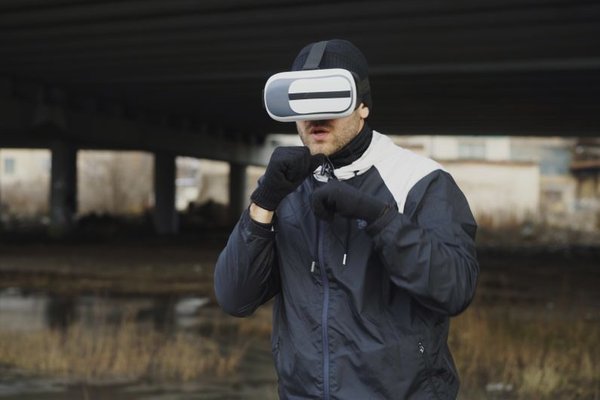
You put on a VR headset, explore a convincing virtual world, and then notice your stomach turning. The headset may be working perfectly, yet the experience feels anything but comfortable. VR headset motion sickness is a common obstacle, especially when a game makes you move in ways your body cannot feel.
The useful question is not simply whether a headset causes nausea. It is which part of the experience triggers it: artificial movement, turning, visual lag, poor fit, or a combination. Identifying that difference helps you make practical changes instead of abandoning virtual reality altogether.
Why a virtual world can make you feel sick
Your brain normally combines information from your eyes, inner ear and body to judge movement. In VR, your eyes might show you running down a corridor while your inner ear reports that you are standing still. This sensory disagreement is one of the main VR nausea causes. It can produce queasiness, sweating, headache, disorientation and virtual reality dizziness.
The reverse mismatch matters too. If you physically turn your head but the displayed scene responds late or unevenly, what you see no longer matches your movement precisely. Tracking problems, stuttering and dropped frames can make an uncomfortable experience worse.
Start with the movement settings, not the graphics
Choose teleportation instead of smooth walking
Many games offer teleport movement, which shifts you between locations without showing continuous travel. If joystick walking makes you nauseated, try teleportation first. For example, in a virtual museum, selecting a spot across the room can feel easier than watching the entire room slide past while your feet remain planted.
Switch from smooth turning to snap turning
Continuous joystick rotation makes the whole scene sweep across your vision. Snap turning rotates the view in short increments instead. Look for turning options in the game’s comfort menu, then choose whichever feels better. Physically turning your body within a safe play area can also feel more natural than turning with a thumbstick.
Try a movement vignette
Some VR comfort settings darken the outer edges of the image while you move. This vignette reduces peripheral visual motion, which can help certain users. It does not suit everyone, so compare a short session with the feature enabled and disabled. Comfort options are often game-specific rather than universal headset settings.
Make the headset easier to wear and see through
Before starting a game, adjust the strap so the headset feels secure without pressing painfully against your face. Position the lenses for the clearest image, and set the interpupillary distance, or IPD, if your device supports adjustment. Poor alignment can cause blur or eye strain, which may accompany nausea even when it is not the underlying motion trigger.
Clean the lenses using the manufacturer’s recommended method. If you normally need prescription correction, follow the headset’s guidance on compatible glasses or lens inserts. The right fit may make text and objects clearer, but it cannot eliminate the sensory conflict caused by artificial movement.
If you are comparing devices, a VR headset fit and comfort guide can be more useful than specifications alone. Weight distribution, adjustment range and face-interface comfort affect how willing you are to wear a headset for any length of time.
Check frame stability before increasing intensity
A consistently responsive scene is preferable to one that looks spectacular but stutters. When a PC-powered VR game struggles, reduce demanding graphics options and check the application’s performance guidance. Select a supported refresh-rate setting that the headset and connected computer can sustain. A higher number alone is not a guaranteed cure if the system cannot deliver steady frames.
Wireless PC VR adds another possible source of instability: inconsistent streaming or network performance. If only streamed experiences feel uncomfortable, compare them with a native headset application. Our VR headset refresh rates explained guide can help clarify why smooth delivery matters more than chasing a headline specification.
Build a comfortable first-session routine
Think of your first week in VR as a series of small tests rather than an endurance challenge. Begin with a stationary experience or one where you move naturally around a safe, cleared space. Keep the first session brief, perhaps five minutes, and take the headset off while you still feel comfortable.
On another day, try a little longer only if the earlier session caused no symptoms. Change one variable at a time: teleport versus smooth movement, snap versus continuous turning, or vignette on versus off. That makes it easier to identify what helps you reduce VR motion sickness.
Suppose a rhythm game feels fine but a racing game brings on nausea within minutes. This does not necessarily mean your headset is unsuitable. The racing game’s acceleration, cockpit movement or horizon shifts may be the difference. Return to the comfortable experience while testing gentler options, rather than repeatedly forcing yourself through the troublesome one.
A beginner-friendly VR games guide is a useful next stop because experience design often matters more than the game’s popularity.
Know when to stop and what to avoid
If you start to feel warm, dizzy, unusually tired, headachy or nauseated, stop immediately. Remove the headset, sit somewhere safe, look at the real environment and rest. Fresh air and small sips of water may help you feel more comfortable. Do not continue just to finish a level, and do not drive or do anything requiring balance until you feel fully normal.
If dizziness, vomiting, severe headache or vision changes are significant, recurring or continue after the session, seek medical advice rather than assuming VR is the only explanation.
Frequently asked questions
Can you get used to VR motion sickness?
Some people become more comfortable with gentle, repeated exposure, but improvement is not guaranteed. Short, symptom-free sessions are preferable to pushing through nausea. If discomfort continues, stick with less intense experiences or take a break from VR.
Do expensive headsets prevent nausea?
Not necessarily. Good tracking, clear optics and stable performance can help, but the way a game moves the camera is crucial. A costly headset can still feel unpleasant during artificial acceleration or smooth turning.
Is sitting down better than standing?
That depends on the experience. Sitting can reduce fatigue and the risk of falling when appropriate, but simulated walking while seated may still create a visual-motion mismatch. Follow the game’s intended play mode and maintain a clear, safe space.
How long does VR dizziness last?
Mild symptoms often improve after you remove the headset and rest, but recovery varies. Do not restart while symptoms remain. Persistent, severe or unusual dizziness deserves medical assessment.
A more comfortable way to enjoy VR
VR headset motion sickness is not always a reason to give up on virtual reality. Start with the type of motion shown on screen, then check fit and performance. Use teleportation, snap turning and other comfort options where available, and build up slowly without treating nausea as something to overcome by force. The best setup is the one that lets you enjoy the experience while feeling well afterward.